Where Am I? Identifying & Mapping macOS Virtual Desktops
I've used virtual desktops since my early Linux days. On macOS, I keep about ten Spaces open
and bind each one to a hotkey. ctrl+1 is desktop 1, ctrl+2 is desktop 2, and so on.
Music & media live in desktop 8, whether on my work or personal laptop, so that one is muscle memory.
The middle desktops are the problem. Desktops 3 through 7 churn as projects come and go, and I lose track of
which is which. I'll hit ctrl+5 expecting what I was just looking at and land somewhere else.
macOS gives you the shortcuts to jump between Spaces, but nothing tells you where you landed. I wanted a small permanent "you are here" in the menu bar and I'd wanted it for years. Agentic development finally made it quick enough to build.
Virtual Desktop Badge is a menu-bar app that shows the current desktop number in a small box. No Dock icon, window or preferences screen. Just the number with an optional label beside it.

It's out! macOS 13+, MIT-licensed, source and a signed build on GitHub.
That's the pitch and the rest of this post is the interesting part. I was surprised by some of the hoops I had to jump through to get this working.
The problem: there is no API for this
You'd think "what Space number am I on" is a one-line system call, but it's not. macOS has no public API that answers that. The window-management APIs were narrowed years ago and Spaces ended up on the wrong side of that line. You can switch Spaces and you can be told a switch happened but you cannot ask which one is showing right now through anything documented.
So the number on the badge comes from two signals, each covering for the other's weakness.
Signal one: the keyboard, for instant feedback
The shortcuts I actually use are ctrl+1 through ctrl+0. When I press one I want the badge to
update instantly. There is a global key monitor that handles that.
The detail that matters is matching keys by physical position, not by the character they produce.
Match on the character and the badge breaks the moment someone runs a non-US layout or remaps their
number row. Key codes don't care about layout. The key in the "1" slot is the same code whether it
types 1, &, or anything else.
// ctrl + a number-row key, matched by physical position (layout-independent)
// kVK_ANSI_1 … kVK_ANSI_0  ->  desktops 1 … 10
if event.modifierFlags.contains(.control),
   let desktop = desktopNumber(forKeyCode: event.keyCode) {
    badge.setNumber(desktop)   // immediate, no private API involved
}
This path is fast and needs no private API, but it only knows about the switches it sees. A trackpad swipe never touches those keys. Neither does a Mission Control click or a jump to desktop 11. Left alone the keyboard path drifts out of sync with reality.
Signal two: the system notification, for ground truth
The second signal is always correct but it's just not always instant.
NSWorkspace.activeSpaceDidChangeNotification
fires on every Space change. Keys, swipe and Mission Control. When it fires the
badge throws away its guess and re-derives the real number from scratch.
"From scratch" is where the private API shows up. CGSCopyManagedDisplaySpaces hands back the
ordered list of Spaces per display. Walk the list for the primary (menu-bar) display, find the
active one, and its position is your 1-based desktop number.
// fires on any Space change; this path is the source of truth
center.addObserver(forName: NSWorkspace.activeSpaceDidChangeNotification, …) { _ in
    let spaces = CGSCopyManagedDisplaySpaces(connection)   // private, undocumented
    badge.setNumber(activeSpaceIndex(on: primaryDisplay, in: spaces))
}
So the work splits cleanly and the keyboard gives you a zero-lag answer on the common case. The notification corrects it a fraction of a second later, after any switch however it happened so you get the speed without having to trust the fast path.
Quarantining the part that will break
CGSCopyManagedDisplaySpaces is private and undocumented, which is a liability. Apple can change
it or remove it in any major macOS release. I don't want that risk spread across the whole codebase.
So every line that touches the private API lives in one file: CGSBridge.swift. Nothing else in
the app knows it exists. If a future macOS breaks it there's exactly one place to look, and the
keyboard path keeps the badge useful while I fix it. Containing the blast radius of the sketchy
dependency was the design decision I cared most about.
The rest of the layout follows the same instinct. Everything that decides what number and label to
show lives in a pure core, VirtualDesktopBadgeCore and it makes no system calls. Raw Spaces data goes
in and a typed model and a 1-based index come out. The AppKit executable is thin wiring on top: the
status item, the key monitor, the notification observer. Because the core is pure I can unit-test
the Space-number logic with no GUI and no running macOS session.
VirtualDesktopBadgeCore/     pure, unit-tested, zero system calls
  DisplaySpaces.swift          raw CGS data  ->  typed model
  SpaceIndex.swift             active space  ->  1-based desktop number
  BadgeRenderer.swift          number        ->  menu-bar image
  …
virtualdesktopbadge/         the AppKit glue
  CGSBridge.swift              the one file touching the private API
  AppDelegate.swift            status item, key monitor, notification, menu
Labels, because a number isn't always enough
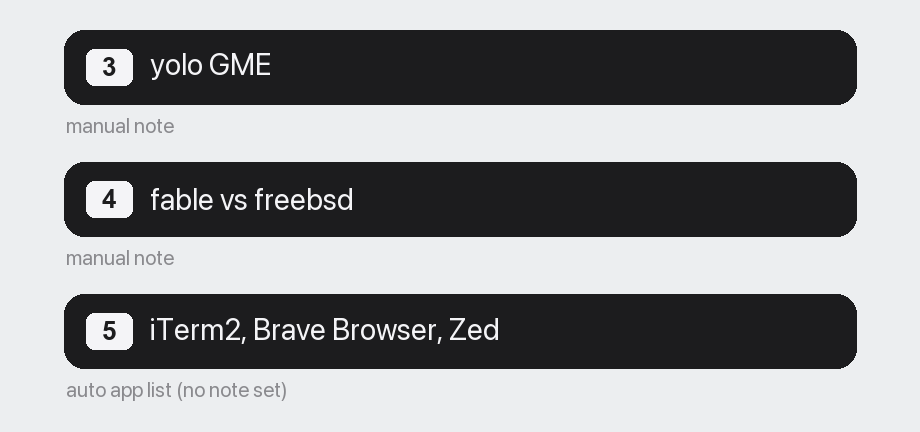
A number tells you where you are but not what's there, so the badge shows a label beside it. If
you've set a manual note it shows that, like yolo GME R&D or fable hax vs freebsd. If you haven't, it
shows the apps on that desktop instead: frontmost first, up to three, then +N and updates live as
you open and close windows.
What it doesn't do
- The instant keyboard path only covers
ctrl+1…ctrl+0, which is desktops 1 through 10. Those are the number-row keys. Higher desktops still show the right number through the notification path but miss the zero-lag shortcut. - Auto app-labels only reflect the desktop you're looking at. macOS won't tell you what's on the Spaces you aren't viewing. That's fine. The badge only needs the current one.
- The number derivation leans on that private API. A major macOS release could change it and force a patch. See "one file" above.
Get it
macOS 13 (Ventura) or later. Grab the latest .zip from
Releases, or build from source with
./scripts/package_app.sh. It's ad-hoc signed rather than notarized, so macOS asks you to allow it
once on first launch. Feedback and pull requests welcome.
Stack: Swift, AppKit, Swift Package Manager, XCTest; a private CoreGraphics (CGS) Spaces API, quarantined to one file.